

Exclude Files from the Index
Depending on your situation, you might not want to have every file indexed. It is possible to exclude files from indexing by following the steps outlined below.
In the Options window, the Files tab displays the list of folders to index and those excluded. The first part of the list indicates the name or complete path to each folder to index and the types of files to index (documents, music, pictures and/or videos), under the File Types column. The lower part of the list displays excluded folders. As excluded folders are never indexed, the File types column displays nothing for each specified folder. The Index Action column indicates whether the subfolders of this folder are indexed.
Local and network drives, external hard drives and specific files or folders can be added, excluded or removed. Also, targeted file types can be easily modified.
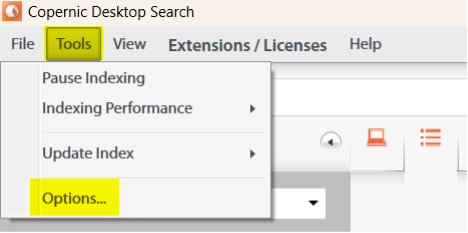
To exclude a drive or folder: In the Tools menu, click Options
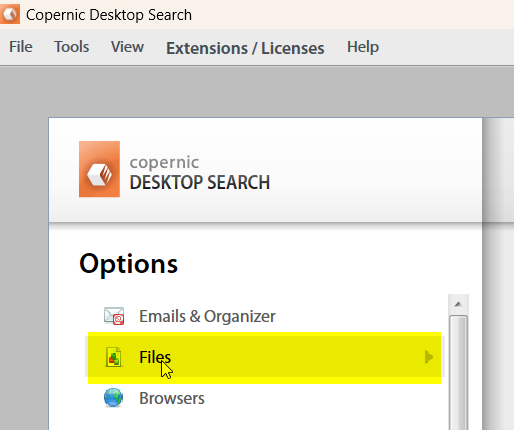
Select the Files tab
Click Add. A new line will appear at the bottom of the list.
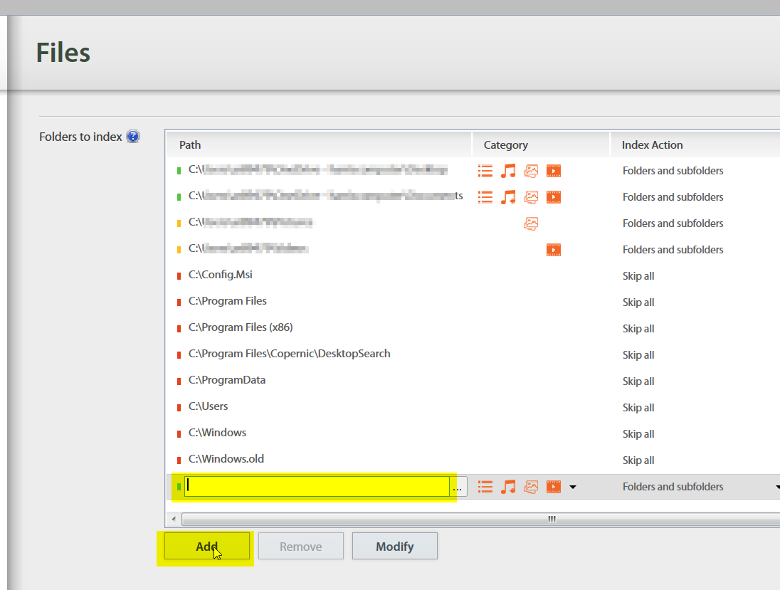
Click on the Index Action cell from the newly added path and select Skip all action. Click elsewhere in the window to confirm selection.

Type the folder path or browse to the folder you want to exclude using the “…” button.

Click Back to main view or Escape key to confirm and close the Options window.
Have additional questions? You can reach us at [email protected].