

Overview of Copernic’s User Interface
We believe Copernic is designed to be user-friendly, but we also understand that new software can be daunting and that every user has a different benchmark for new technology. Below, we have outlined the areas on the main dashboard and their purposes.
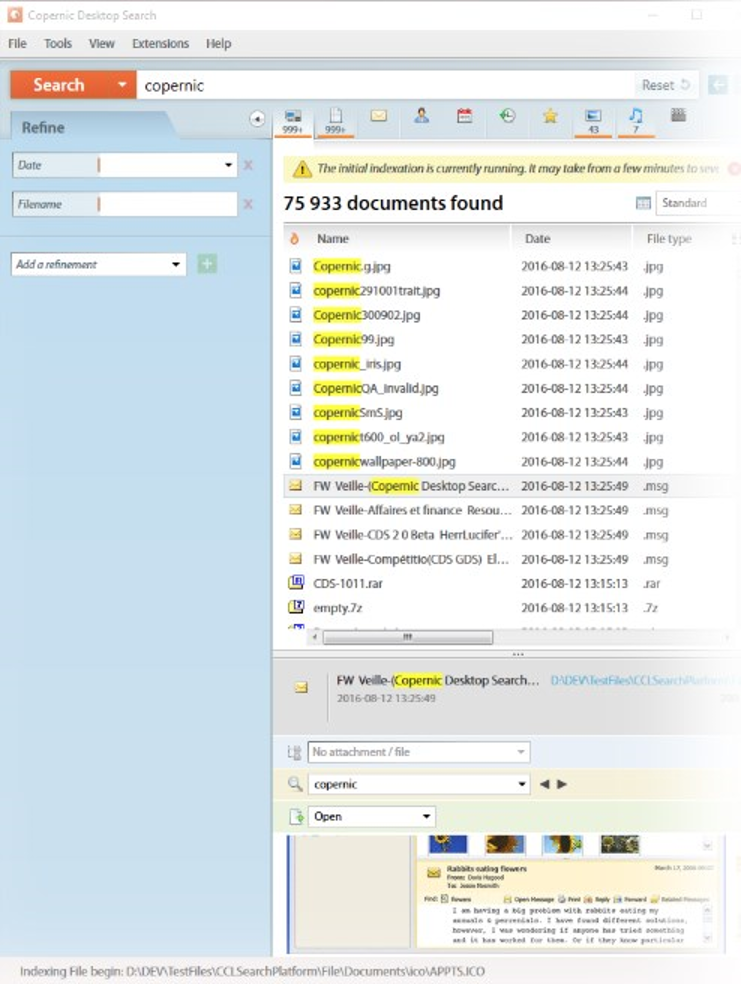
Main Window Overview
Menus offer useful options and commands to configure and customize CDS as well as access to Online Help. Use the X icon to minimize CDS to the system tray.
Search Box is where you type your keywords. It is possible to browse through your last ten queries by clicking on the arrows found at the end of the Search Box.
My Searches, located beside the Search button, allows you to execute a predefined search such as: “Today’s emails”.
Search Categories can be found below the main search bar. This provides the buttons to switch between categories.
The Refine Section is where you can refine the query using the different available filters. You can customize the displayed refinements in the All category using the + or x icons.
Search Results List is the section of the main window that displays the search results.
The Preview Section displays a software-based preview of the selected result.
The Status Bar indicates the current status of the application.
If you have any questions, please feel free to reach out to us as [email protected].