

Gmail Settings and Searches
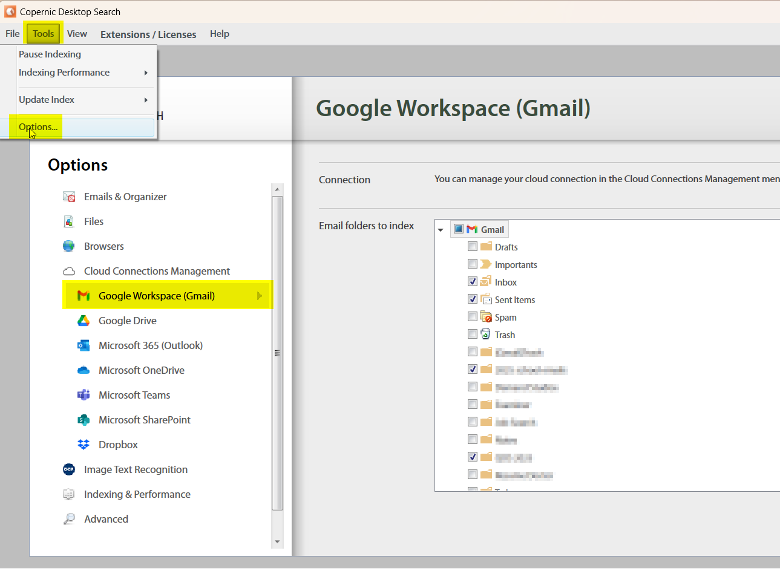
Now that our Elite level has Gmail capabilities, you’re probably anticipating using it! To find it in your settings, Go to Tools->Options->Google Workspace. Follow the prompts to connect your Gmail address, this will likely include authorizing your Google Workspace in the Cloud Connections Management area. Once it’s connected, you can select the Email folders you would like to index by using the checkbox next to the folders in your Gmail.
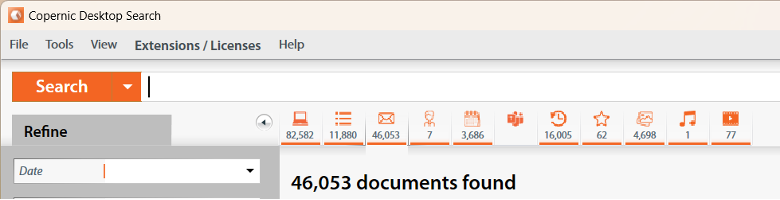
To search your emails, you can select the email category header. In the initial search with no refinements, over 46,000 emails are indexed.
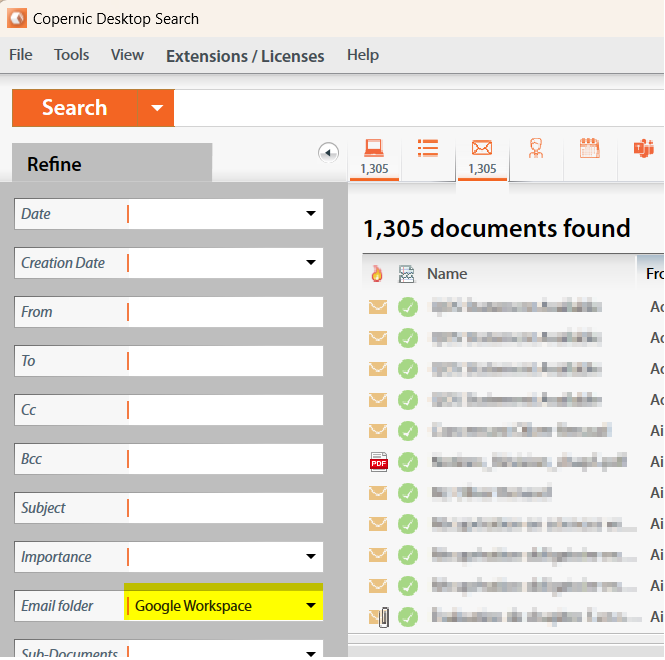
You can narrow your search by selecting Google Workspace in your Email Folder refinement. This brings your results to 1,305 emails.
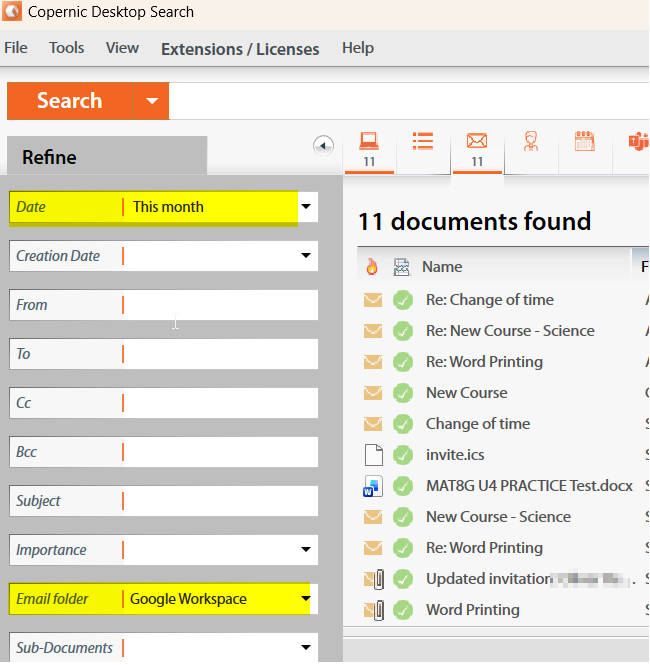
You can include additional refinements to further narrow your search; in this case, we’ve selected all emails sent to Gmail this month. Our results are now at 11.
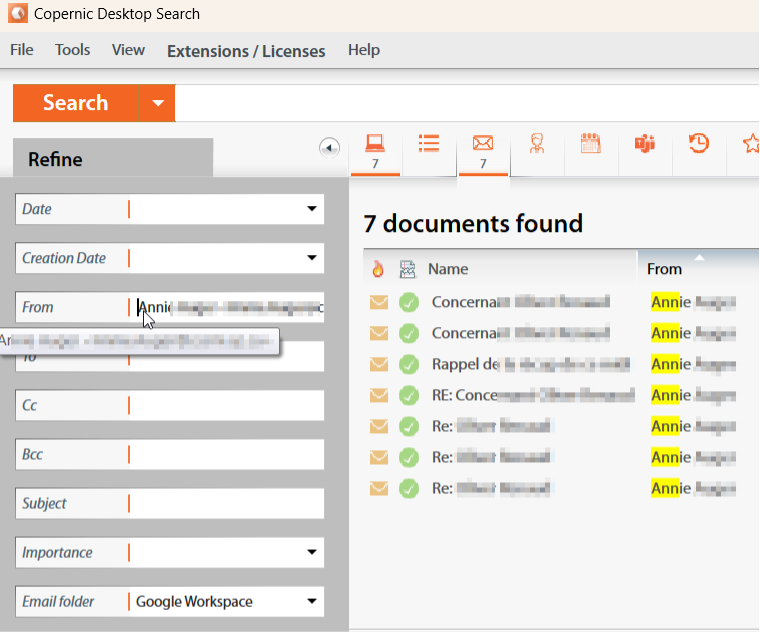
Alternatively, if you know the sender, you can use the From refinement menu to add the sender’s name and see all correspondence from that person. In our example, the first search returns 7 files.
Looking to upgrade so you can index your Gmail address? Reach out to our team members at sales@copernic.com for a custom upgrade link. The system will take the time used on your existing subscription into account, so you will not lose money or time!