

How To Make Your Indexing Schedule Less Aggressive
One of our more common questions is asking for help with an indexing timing out. This is typically due to an overly aggressive indexing schedule. If the schedule is too tight, the index may not complete because the next index starts, thereby creating an endless loop that never finishes.
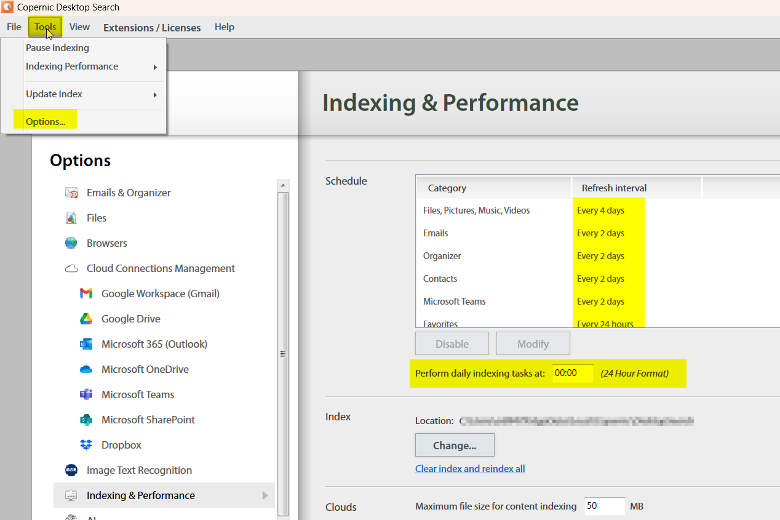
In the previous photo, you will see an ideal indexing schedule. You can also create a preferred time to run your index, saving your computer’s usage for downtimes.
To change the schedule, click on the category you’re looking to adjust. If you don’t want to index that category at all, select Disable. To change the frequency of the indexing of that category, select Modify.
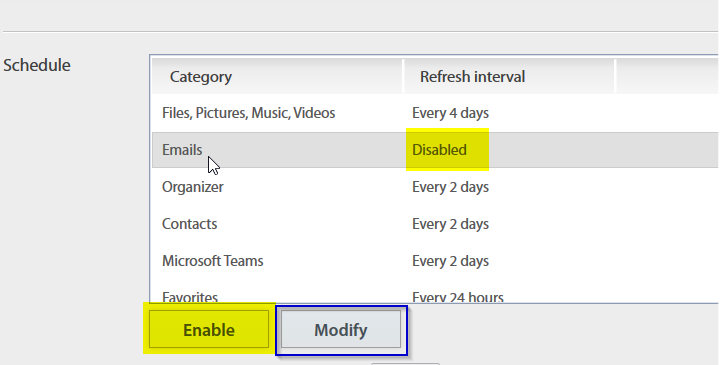
Disabled categories will be displayed as such and can be enabled the same way they were disabled. When you select Modify, a pop-up window will display with a dropdown menu. Make your desired changes and select Ok.
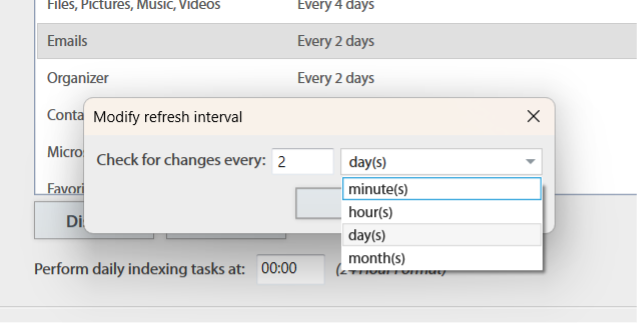
Creating a more conservative Indexing schedule will help ensure all files have completed their indexing before another cycle begins. This can save you time and frustration.
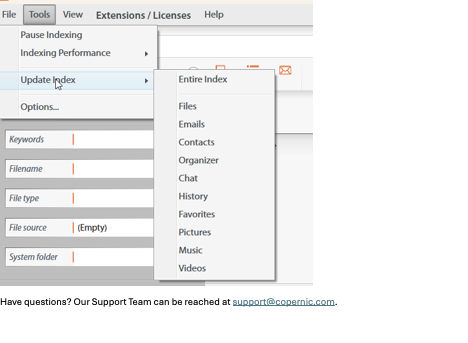
Have a new file that has to be indexed ASAP? Keep the conservative schedule and manually index the category of the necessary file:
Have questions? Our Support Team can be reached at [email protected].