

Setting up the AI Extension
Copernic has launched a new AI connector which unlocks new features this month! You may have noticed that the new AI extension has been rolling out to Advanced and Elite licenses. Once activated, you will be able to summarize or translate documents, prepare AI replies to emails, generate audio and video transcripts, and more directly in Copernic.
You can enable the AI extension under Extensions/Licenses by checking the “Enable” box next to the name of the extension.
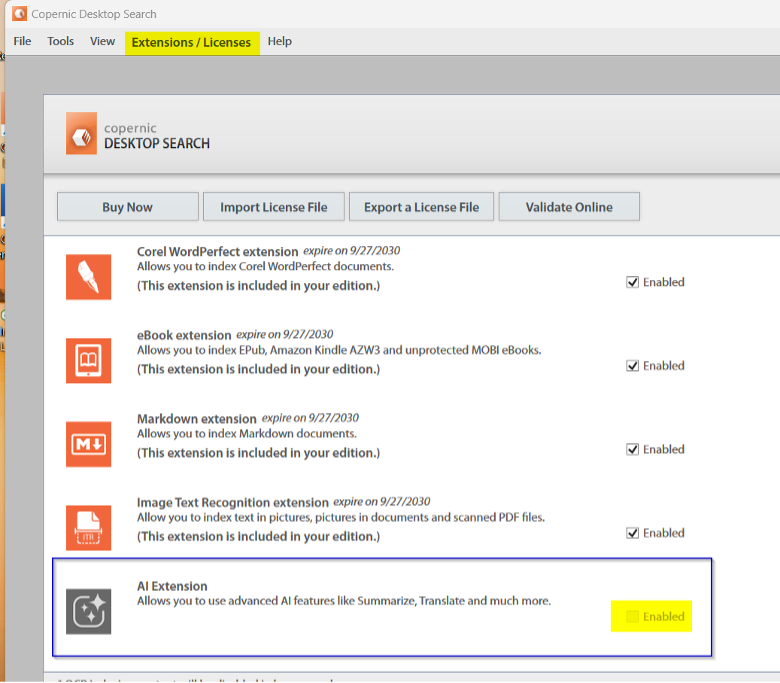
Once it’s enabled, you can head over to your AI settings in Tools->Options->AI to create your preferred settings.
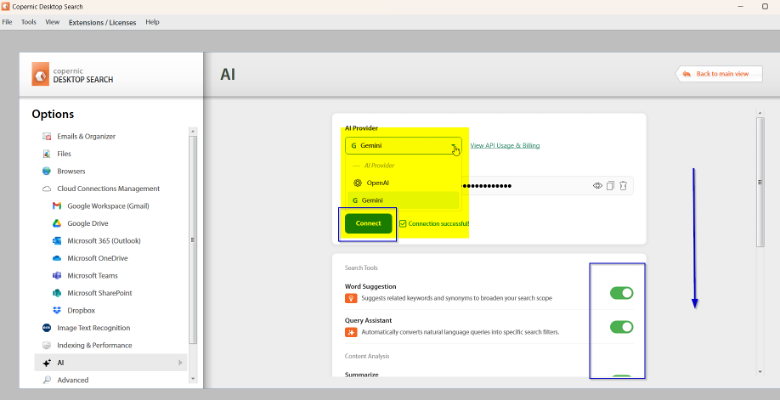
Select your preferred AI Provider and input your API key. It is important to understand that you are responsible for any fees associated with your AI usage. Toggle your desired features off or on. Select “Return to Main Menu” to save your changes and return to the main dashboard.
Your dashboard will look like this once the setup is complete:

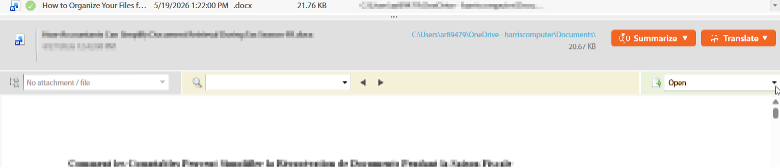
Additional features can be seen in the preview pane:
Reach out to us at [email protected] if you have any questions about updating your Copernic to the latest version or enabling your AI functionality. Have a Basic license but want to access the AI extension? Upgrade to an Advanced or Elite license, and it is included!