

Using the AI Extension to Manage Your Email
Summary
Copernic’s AI Extension makes email management faster and easier by helping users translate messages, summarize lengthy emails, and prepare replies. With a few clicks from the preview pane, users can quickly understand email content and create responses they can copy, personalize, and send.
Using the AI Extension to Manage Your Email
The AI extension has a few features that can make your email management quick and easy. Whether it’s translating, summarizing (hello, long corporate emails everyone just wants to delete!), or helping you write a reply, let us help!
To start, find the email that needs your attention. We found this one using the email folder and date refinements. Highlight the email and it will display in your preview pane.
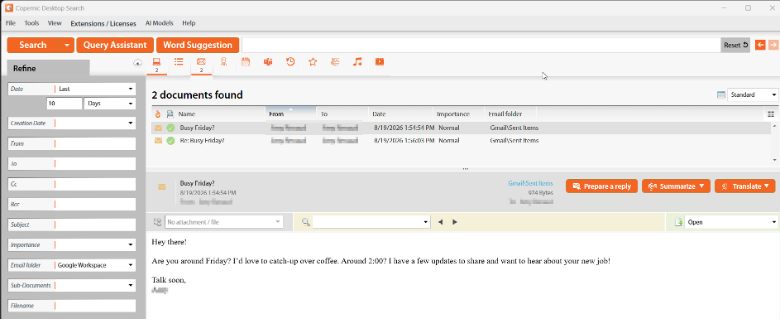
On the right-hand side of the preview pane, you will see three orange buttons: Prepare a reply, summarize, or translate. In our first example, we will select the translate option. Click the arrow in that button and select your language of choice. A pop-up of the translation will appear; you will be given the option to copy or close the translation.
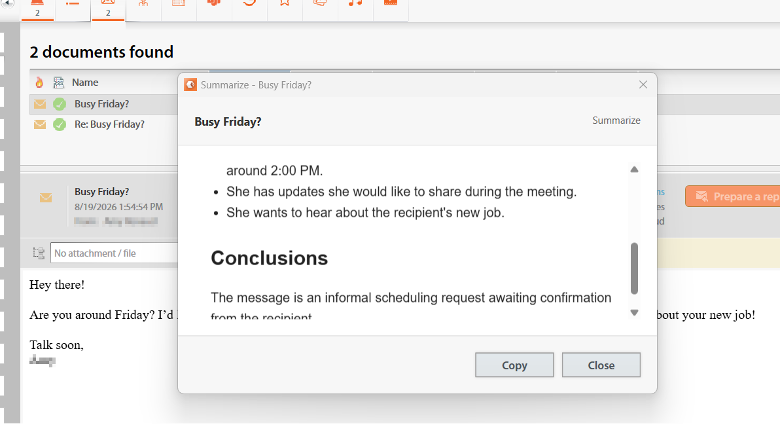
You will see a similar pop-up with the request to summarize. The summary will outline the main points of the email and include a conclusion.
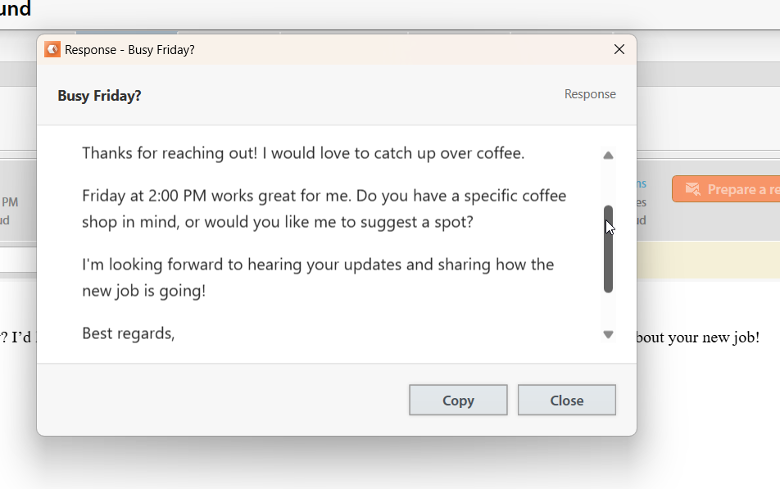
While catching up with friends is a joy, responding to emails might not be. Clicking on Prepare a reply will write a response for you. You can copy it into your email and make any changes you’d like.
The new AI extension can help you manage your emails and other files.
Have a question? Reach out to us at [email protected].